
The Complete Guide to Canva Web Design and Templates
The Complete Guide to Canva Web Design and Templates
Understanding Canva Web Design: Key Features and Capabilities
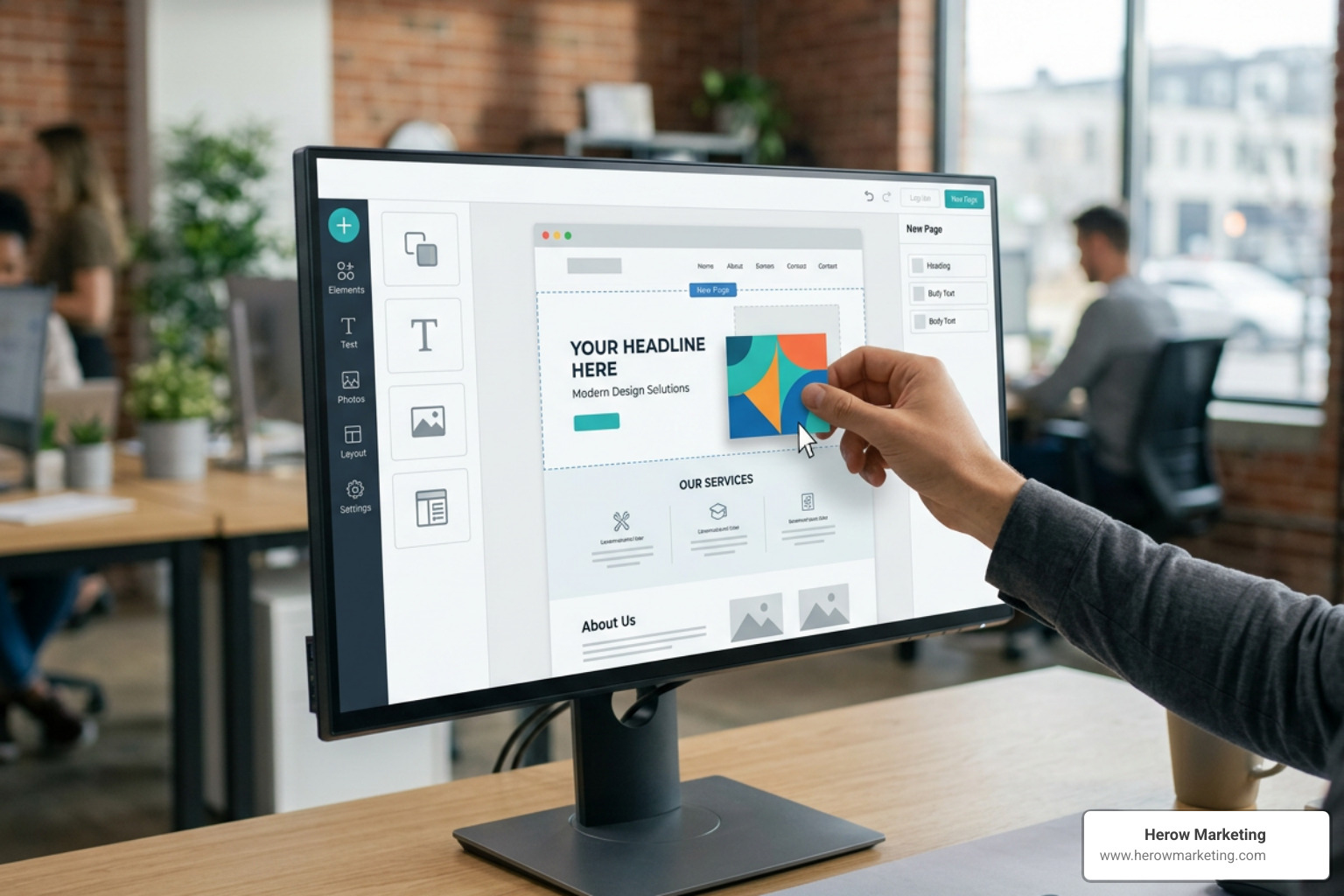
At its core, canva web design brings the platform’s familiar drag-and-drop interface into the realm of web publishing. Rather than managing complex code repositories, databases, or content management system (CMS) plugins, you manipulate visual blocks on a digital canvas. The platform provides access to a visual suite that seamlessly bridges graphic production and web layout.
When exploring how to use Canva’s Website Builder – Create a Free Website, you will find two primary structural approaches: single-page layouts and multi-page architecture. Single-page sites display all content on one continuous vertical scroll, utilizing anchor navigation links to jump between sections. Multi-page sites allow you to break content into distinct URL paths, making it easier to structure information logically. For businesses experimenting with visual layouts, combining Canva with Top Content Creation Websites to Make Your Site Pop can significantly enhance overall brand presentation.
Core Capabilities of Canva Web Design
The true strength of canva web design lies in its absolute visual freedom. Traditional website builders often lock users into rigid containers or grid systems. Canva lets you place elements anywhere on the page, layer images, adjust transparency, and align typography with pixel precision.
Key native capabilities include:
- Customizable Templates: Choose from thousands of pre-designed layouts tailored to specific industries and events.
- Responsive Layouts: Elements automatically adjust and stack vertically when viewed on mobile screens.
- Navigation Menus: Automatically generate link bars at the top of your site using page notes or top-level headings.
- Custom Favicons: Personalize your browser tab icon by uploading custom images (recommended at 280 x 280 pixels, up to 25MB) under Site Settings.
- Interactive Links: Hyperlink any graphic, icon, or text element to external websites, social profiles, or internal pages.
Harnessing AI Tools for Canva Web Design
Canva incorporates generative AI capabilities directly into its web design workflow through Magic Studio. These tools reduce the effort required to craft copy and optimize visual assets for the web.
Magic Write serves as an AI copywriting assistant, generating headliners, call-to-action (CTA) text, and section copy directly inside the editor based on your prompts. Additionally, AI features like Magic Eraser and background removal allow you to isolate product shots or team portraits without leaving your web canvas. Automated layout tools can even convert standard design layouts into fully responsive web sections automatically.
How to Build a Website in Canva Step-by-Step
Building a site in Canva follows a straightforward, visual workflow. Whether you follow the official documentation to Design websites in Canva using templates or from scratch or experiment on your own, the process is fast and intuitive.
Template Selection and Layout Customization
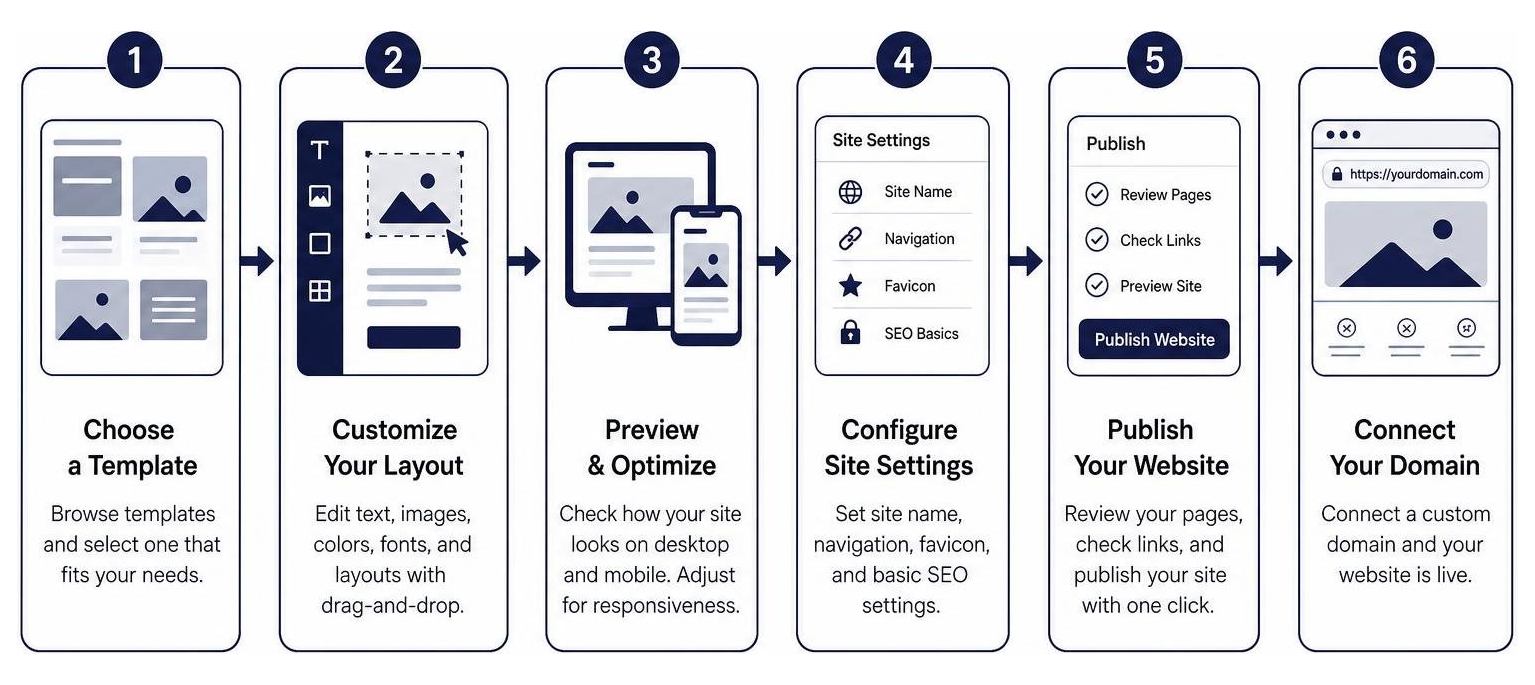
Your first step is opening Canva, searching for “Website,” and browsing the category templates. You can filter by industry, color scheme, or layout style. Once you open a template, customizing it to reflect your brand identity is effortless:
- Brand Kit Integration: Apply your brand’s custom color palette, typography pairs, and official logos with a single click across all pages. If you’re building a brand from scratch, review our insights on Branding Strategies for Startups: Why Your Logo Is Not Your Identity to ensure visual consistency.
- Element Editing: Swap placeholder photos with stock photos or your own uploaded brand assets. Edit headers, insert interactive buttons, and adjust spacing.
- Internal Linking: Highlight text or right-click any element, click the link icon, and link directly to another section or page path within your design.
- Preview Modes: Switch between desktop and mobile preview modes directly in the editor to ensure your site looks crisp across all viewports.
Publishing Options and Domain Setup
Once your layout is polished, clicking Publish Website in the top-right corner opens your deployment options. Depending on your goals, you can learn how to Publish Canva websites using one of three domain paths:
- Free Canva Subdomain: Publish instantly under a
yourname.my.canva.siteURL. This option costs nothing and is supported on free accounts. - Purchase a Custom Domain: Search, register, and lock a brand-new domain directly inside Canva (typically costing $10 to $20 per year).
- Connect an Existing Domain: Canva Pro users can map an existing custom domain registered with external providers by updating standard DNS settings (A and CNAME records).
Evaluating Canva Web Design: Pros, Cons, and Best Use Cases
While canva web design excels in accessibility, evaluating its feature set against custom web design helps clarify whether it fits your long-term business strategy.
| Feature / Criteria | Canva Web Design | Custom Web Design |
|---|---|---|
| User Accessibility | Non-technical; drag-and-drop visual editing | Requires web development or CMS knowledge |
| Setup Speed | Minutes to hours | 30 days (standard) to 2–3 months (e-commerce) |
| Hosting Costs | Free hosted subdomain or low-cost domain link | Monthly/yearly server hosting fees |
| Design Flexibility | Limited to visual elements and preset templates | Unlimited custom layout and interactivity |
| CMS Capabilities | None (no dynamic blogs, databases, or user accounts) | Robust CMS engines (e.g., dynamic blogging, search, custom posts) |
| SEO Depth | Basic (meta titles, custom URLs, meta descriptions) | Advanced (schema markup, canonicals, robots.txt, custom scripts) |
Advantages and Key Limitations
The primary benefit of using Canva is no-code simplicity paired with rapid deployment. You can launch a stunning online presence in an afternoon without managing servers or paying hosting fees.
However, key limitations exist:
- Lack of a Content Management System (CMS): Canva cannot store database entries, dynamic blog articles, or complex membership platforms.
- No Advanced E-commerce: You cannot manage product inventory, native user carts, or complex checkouts natively on Canva.
- Design Constraints: You cannot inject custom HTML, CSS, or external JavaScript tracking tags into the backend.
Ideal Use Cases and Target Audience
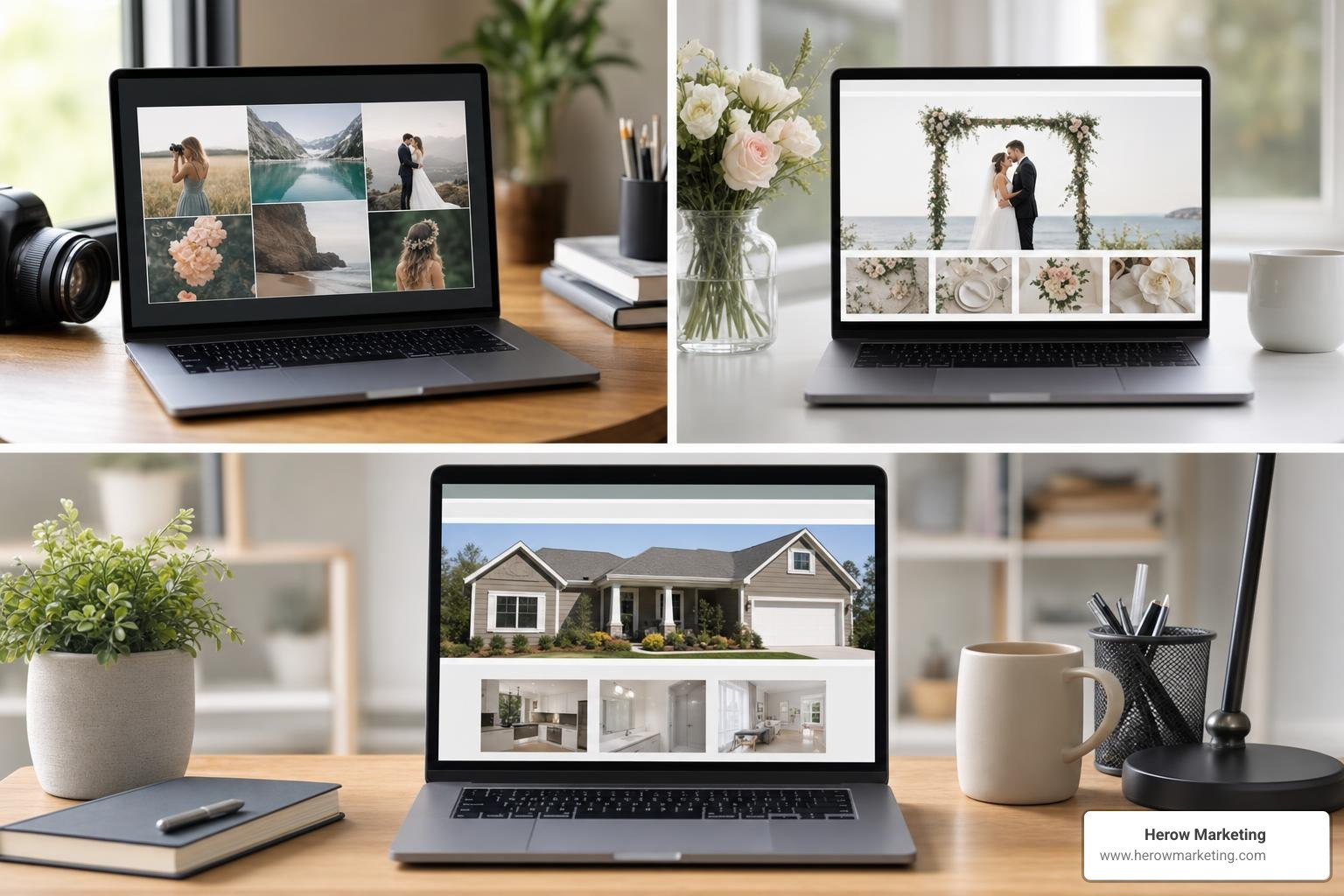
Because of its lightweight structure, canva web design is ideal for specific visual projects:
- Personal Portfolios & Resumes: Showcase photography, design, or writing samples with dynamic visual layouts.
- Local Service Businesses: Deploy simple landing pages highlighting contact information, service menus, and location details.
- Event Landing Pages: Design attractive event portals for corporate functions, conferences, or destination weddings.
- Link-in-Bio Hubs: Build a centralized social media link landing page to connect followers with your external links.
SEO, Security, and Technical Performance in Canva
A common question from business owners is whether Canva websites perform well in terms of search engine visibility and user security.
From an SEO perspective, Canva provides foundational tools. You can configure unique page titles, custom URL paths, and meta descriptions (150–160 characters recommended) for each page within your document. Search engine indexing can be toggled on or off depending on whether your site is public or private. To dive deeper into balancing content production with sound web management, read our guide on Content Creation and Management 101: Stop Going Crazy and Start Creating.
Regarding technical performance and security:
- SSL Certificates: Every site published via Canva automatically includes free HTTPS encryption via an SSL certificate.
- Domain Privacy: Domains purchased directly through Canva include WHOIS privacy protection and domain locking.
- Access Controls: You can password-protect private sites or implement Single Sign-On (SSO) for internal enterprise hubs.
- Mobile Responsiveness: Enabling “Resize on Mobile” ensures desktop elements stack neatly into readable vertical layouts on smaller viewports.
Frequently Asked Questions about Canva Web Design
Can I use a custom domain with a Canva website?
Yes. You can purchase a custom domain directly through Canva for approximately $10 to $20 per year, which includes automatic DNS configuration, HTTPS encryption, and WHOIS privacy. Alternatively, if you subscribe to Canva Pro, you can connect an existing domain registered elsewhere by mapping your DNS settings according to Canva’s instructions.
Is Canva’s website builder completely free to use?
Yes, Canva’s core website builder is free. Free plan users can publish up to 5 live websites concurrently on the default .my.canva.site subdomain without hosting costs. Upgrading to Canva Pro unlocks unlimited live websites on the free subdomain, removes “Designed with Canva” badge footers, enables custom domain mapping, and unlocks premium stock media and Brand Kit features.
How many pages and sections can a Canva website have?
A single Canva website supports up to 10 sections per page and up to 45 total pages within a multi-page site structure. To ensure seamless user navigation across long scrollable pages, you can add anchor links connected to your top menu bar.
Conclusion
Canva web design has democratized the process of creating visually engaging, mobile-responsive websites. It offers design accessibility, fast setup times, and free hosting, making it a fantastic solution for small service businesses, personal portfolios, event pages, and link-in-bio hubs.
However, when your business scales and requires custom e-commerce carts, advanced SEO architectures, dynamic blogging engines, or tailored web applications, a no-code visual template builder will reach its limits.
At Herow Marketing, based in Bethlehem, PA, we help growing brands bridge the gap between simple visual landing pages and high-performing custom digital platforms. Whether you need strategic guidance on visual branding or end-to-end custom development, explore our Professional Web Development Services to build a website designed for measurable growth.