

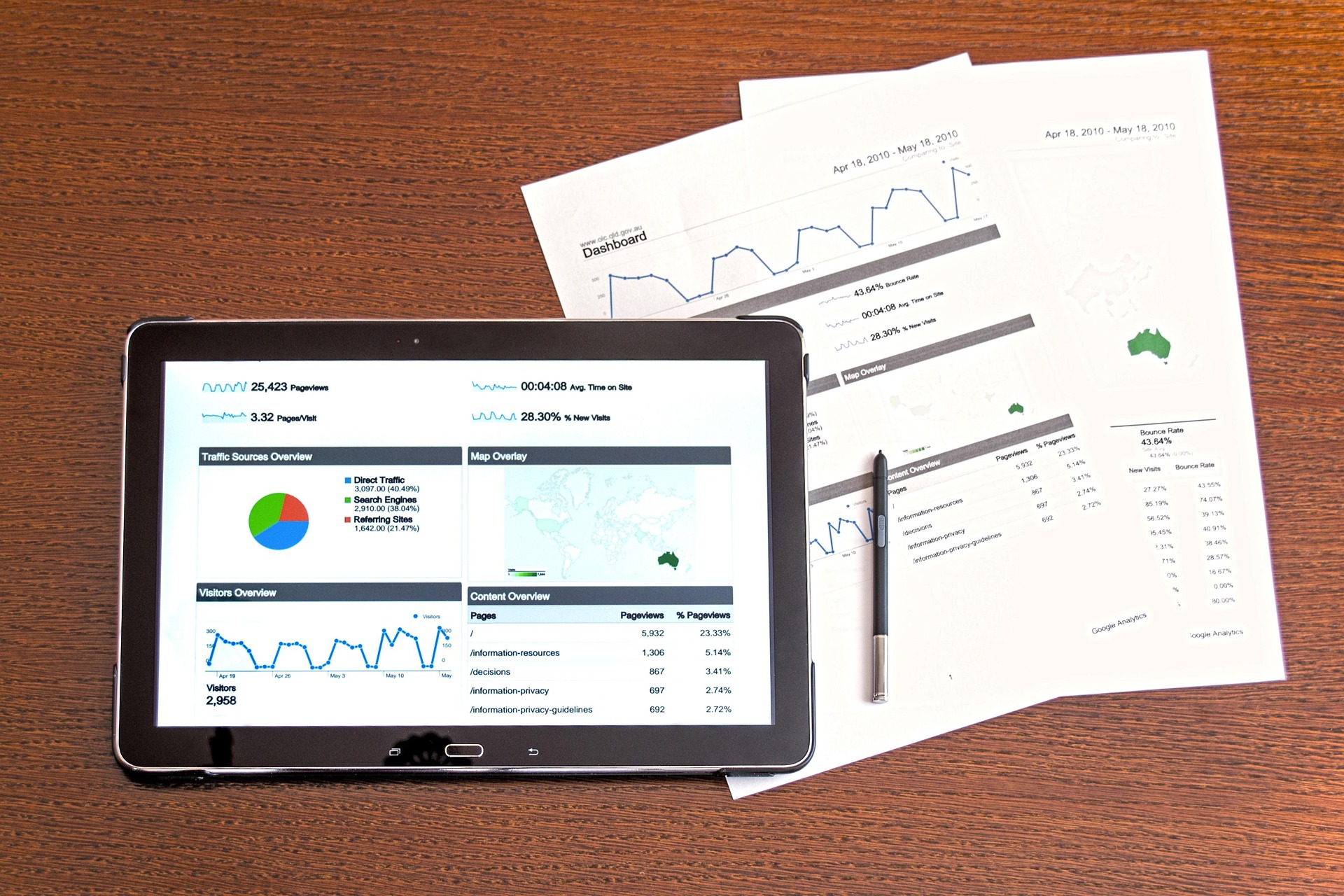
The Ultimate Guide to Your First Analytics Dashboard Setup
Why Your Analytics Dashboard Setup Determines Whether Your Data Actually Works for You
Analytics dashboard setup is the process of connecting your data sources, choosing the right metrics, and building a visual display that shows you what’s happening in your business — at a glance, in real time.
Here’s the fastest way to get started:
- Create a Google Analytics 4 (GA4) account at analytics.google.com
- Add a property and configure your time zone and currency
- Set up a web data stream and enable enhanced measurement
- Install your tracking code via Google Tag Manager, gtag.js, or a CMS plugin
- Change data retention to 14 months (the default 2 months loses data fast)
- Mark your key events like form submissions or purchases
- Connect a reporting tool like Google Looker Studio to visualize your data
- Verify everything works using GA4’s Realtime report
That’s the core of it. The rest of this guide walks you through each step in detail.
Most small business owners don’t have a data problem — they have a visibility problem. The data exists, but it’s scattered across platforms, buried in spreadsheets, or just never looked at. Marketing teams spend an average of 30–40% of their time on manual reporting tasks: downloading CSVs, cleaning data, and building slides that are outdated the moment they’re finished.
A well-built dashboard changes that. Instead of chasing numbers across five different tabs, you see everything that matters on one screen — traffic, conversions, revenue, and more — updated automatically.
“Navigating digital marketing without a dashboard is like flying a plane without an instrument panel.”
The goal isn’t more data. It’s clearer data that leads to faster, smarter decisions.
I’m Gianna Heron, and my background spans Wall Street finance, creative direction, and building Herow Marketing from the ground up — all experiences that gave me a front-row seat to how much a solid analytics dashboard setup can separate businesses that grow intentionally from those that guess. In this guide, I’ll walk you through exactly how to build one that actually gets used.
Understanding Strategic, Operational, and Analytical Dashboards
Before we click a single button in Google Analytics, we need to decide what kind of “instrument panel” we are building. A common mistake in analytics dashboard setup is trying to make one screen do everything for everyone. When a dashboard is cluttered with too many metrics, it dies a quiet death—nobody looks at it because it’s overwhelming.
We categorize dashboards into three main types based on who is using them and what decisions they need to make:
1. Strategic Dashboards (The “Big Picture”)
These are designed for executives and business owners. They don’t care about which specific blog post got the most clicks yesterday; they care about the health of the company.
- Key Metrics: Return on Ad Spend (ROAS), Customer Acquisition Cost (CAC) vs. Lifetime Value (LTV), and total revenue trends.
- Goal: To track high-level KPIs for long-term goals and organizational health.
2. Operational Dashboards (The “Right Now”)
These are for the people on the front lines—the managers and specialists who need to know if something is breaking right now.
- Key Metrics: Real-time active users, hourly sales, or server uptime.
- Goal: To provide real-time updates for day-to-day operations. If sales suddenly drop to zero, an operational dashboard tells you immediately.
3. Analytical Dashboards (The “Deep Dive”)
This is where the marketing team lives. These dashboards allow for “drill-downs”—segmenting data by device, location, or specific campaign.
- Key Metrics: Bounce rate by landing page, session duration by device type, or conversion rate by traffic source.
- Goal: To help mid-term decision-making. If you want to know why a certain campaign is underperforming, you look here.
To make these effective, we follow the Observe-Hypothesize-Investigate-Act-Measure framework. You observe a trend on your dashboard, hypothesize why it’s happening, investigate the data, act on your findings, and then measure the result. You can find excellent examples of how to build the perfect analytics dashboard that follows this logic to ensure your team actually uses the data provided.

Step-by-Step Google Analytics 4 and Analytics Dashboard Setup
Google Analytics 4 (GA4) is the engine behind 65% of the web analytics market. It powers over 14.8 million websites. However, a default installation often misses the critical settings that make the data “production-ready.”
Setting up your account correctly is the foundation of your entire analytics dashboard setup. Here is how we do it:
1. Create Your Account and Property
Go to analytics.google.com. If you have an existing business account, use that.
- Account Name: Usually your company name.
- Property Name: Use something descriptive like “Herow Marketing Main Website.”
- Reporting Time Zone and Currency: This is vital. If your business is based in Bethlehem, PA, set your time zone to Eastern Time. If your property time zone doesn’t match your ads or your bank, your “daily” numbers will never align.
2. Choose Your Implementation Method
How do you get the tracking code onto your site? There are three main ways:
| Method | Best For… | Effort | Flexibility |
|---|---|---|---|
| Google Tag Manager (GTM) | Most Businesses | Medium | High (Recommended) |
| gtag.js (Manual Code) | Developers | High | Medium |
| CMS Plugins (WP, Shopify) | Beginners | Low | Low |
We almost always recommend Google Tag Manager. It allows for “no-code” management once the initial container is installed, making it much easier to add things like Facebook Pixels or heatmaps later without bothering a developer. For a more detailed walkthrough, you can follow Google’s official guide to set up Analytics for a website and/or app.
Configuring Your Web Data Stream for Analytics Dashboard Setup
Once your property is created, you need to tell Google where the data is coming from. This is called a “Data Stream.”
- Measurement ID: You will receive a code starting with
G-. This is your unique identifier. - Enhanced Measurement: By default, GA4 tracks page views. But you should enable “Enhanced Measurement” to automatically track scrolls, outbound clicks, site search, and video engagement. It saves you from having to manually code every single button click.
- Stream Naming: Keep it simple, like “Production Web Stream.”
Critical Post-Setup Configurations for a Production-Ready Analytics Dashboard Setup
This is where most people mess up. A “default” analytics dashboard setup has a massive trap: Data Retention.
By default, GA4 only keeps your user-specific data for 2 months. If you don’t change this, you won’t be able to run year-over-year reports on specific user behaviors.
- The Fix: Go to Admin > Data Settings > Data Retention and change the “Event data retention” to 14 months.
Other critical steps include:
- Internal Traffic Filters: You and your team probably visit your site 50 times a day. If you don’t filter out your office IP address, your data will be skewed.
- Key Events: In 2024, Google renamed “Conversions” to “Key Events.” You must manually “star” the events that matter (like
generate_leadorpurchase) so they show up in your ROI reports. - Consent Mode v2: If you have visitors from the EU or UK, Consent Mode v2 is mandatory for GDPR compliance. It ensures that if a user rejects cookies, GA4 can still use “behavioral modeling” to fill in the data gaps without violating privacy.
Integrating Multiple Data Sources and Automation
A website dashboard is a great start, but it’s only one piece of the puzzle. To get a true “single source of truth,” your analytics dashboard setup must integrate data from other silos.
Think about the average customer journey. They might see an ad on Instagram, search for you on Google, visit your site three times, and then finally call you. If your dashboard only shows website hits, you’re missing the “why” behind the sale.
The Cost of Manual Reporting
Marketing teams often spend 30–40% of their week just moving data from one place to another. They download a CSV from Google Ads, another from Meta, and a third from their CRM (like Salesforce or HubSpot), then spend hours trying to make the columns match in Excel.
Automated pipelines solve this. Tools like Google Looker Studio, Improvado, or Amplitude can connect directly to your APIs. This means:
- Data Normalization: Ensuring “Facebook” in one report and “FB Ads” in another are treated as the same thing.
- Real-Time Syncing: No more waiting until the end of the month to see if a campaign is working.
- Centralized Ecosystem: Your CRM data (sales) meets your marketing data (spend) to show you your actual profit.
Essential KPIs and Department-Specific Metrics
Once the plumbing is connected, we need to choose the right “gauges.” Here’s what we typically include in a professional analytics dashboard setup for different departments:
For E-commerce Teams
- Conversion Rate: The percentage of visitors who buy.
- Average Order Value (AOV): Are people buying one item or five?
- Cart Abandonment Rate: Where are people dropping off in the checkout flow?
For SEO and Content Teams
- Organic Traffic: How many people found you via search?
- Engagement Rate: Are people actually reading your content? (Aim for >50%).
- Core Web Vitals: Is your site fast enough to rank well on Google?
For Executive Leadership
- Total ROI: For every dollar spent on marketing, how many came back?
- Customer Lifetime Value (LTV): How much is a customer worth over three years?
- Market Share: How do we stack up against the competition?
Frequently Asked Questions about Analytics Dashboards
How long does it take for data to appear after an analytics dashboard setup?
In GA4, the Realtime report will show activity within seconds. However, for your standard, “official” reports, there is a processing lag. It usually takes 24 to 48 hours for data to fully populate and be accurate. If you see “zero” data the morning after your setup, don’t panic! Check the Realtime report to verify the tag is firing, then wait a day for the rest to catch up.
Do I need Google Tag Manager for a professional analytics dashboard setup?
Technically, no. You can paste a snippet of code (gtag.js) directly into your website’s header. However, we strongly recommend GTM. It provides a “container” that makes your tracking future-proof. If you want to add a new tracking pixel next year, you can do it in five minutes through the GTM interface without ever touching your website’s code again. It’s about deployment efficiency and keeping your site’s code clean.
What are the most common mistakes in an analytics dashboard setup?
- Double-Tagging: Having both an old Universal Analytics tag and a new GA4 tag firing the same events. This will double your numbers and make you look like a genius—until you realize the data is fake.
- Vanity Metrics: Focusing on “Total Page Views” instead of “Key Events.” Page views don’t pay the bills; conversions do.
- Cluttered Visuals: Putting 20 charts on one page. If a dashboard requires a 10-minute explanation, it’s a bad dashboard. Limit yourself to 10-12 widgets per page.
- Missing Filters: Forgetting to filter out bot traffic or internal office visits.
Conclusion
Setting up your first analytics dashboard is one of the most empowering things you can do for your business. It moves you away from “I think our marketing is working” to “I know exactly where our last ten customers came from.”
At Herow Marketing, located right here in Bethlehem, PA, we believe that transparency is the foundation of growth. Our strategic playbook doesn’t just focus on pretty designs or clever captions; it’s built on full data transparency. We provide our clients with monthly reports that cut through the noise, showing the measurable growth that matters to their bottom line.
If you’re ready to stop guessing and start growing with a professional analytics dashboard setup, we’re here to help. Whether you need to elevate your brand with expert social media management or build a data ecosystem from scratch, we can ensure your marketing works as hard as you do.
Let’s turn your data into your most valuable asset.